EN DE

OnlyOffice NLP Solver

A plugin for OnlyOffice Spreadsheet with two tools: NLP Solver for nonlinear optimization and PolyFit for automatic polynomial regression.

As an OnlyOffice user I noticed there was no solver plugin available β€” so I built one. The solver uses a customized Nelder-Mead implementation (downhill simplex), written in Go and running inside the plugin via WebAssembly.

By now the solver is mature and reliable in practice. It handles nonlinear problems with nonlinear constraints stably and quickly β€” closing a real gap in the OnlyOffice feature set.

Two Modes in the Plugin

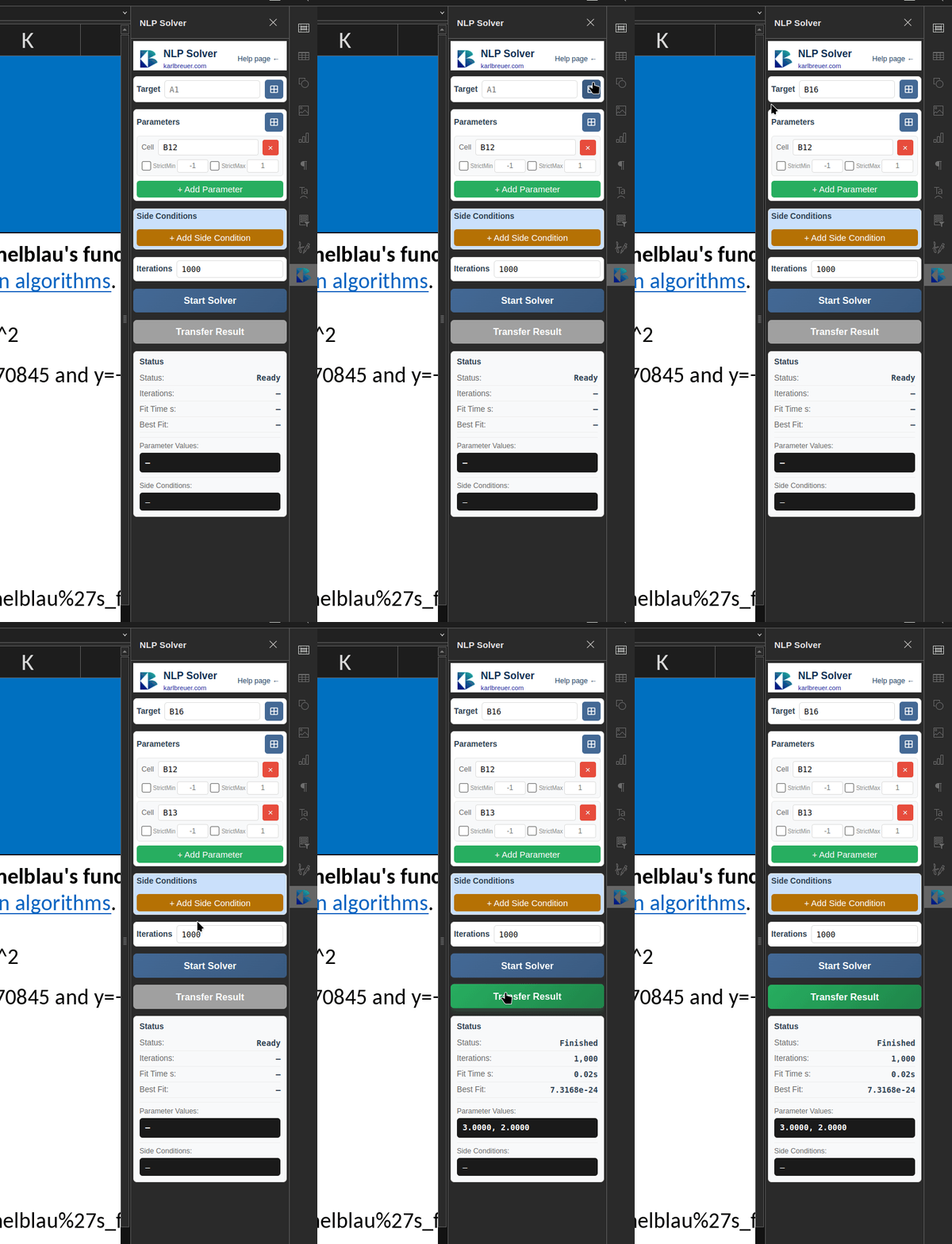
NLP Solver demonstration

NLP Solver

Classical nonlinear optimization. You define a target cell, parameter cells and optional constraints β€” the solver minimizes the objective function.

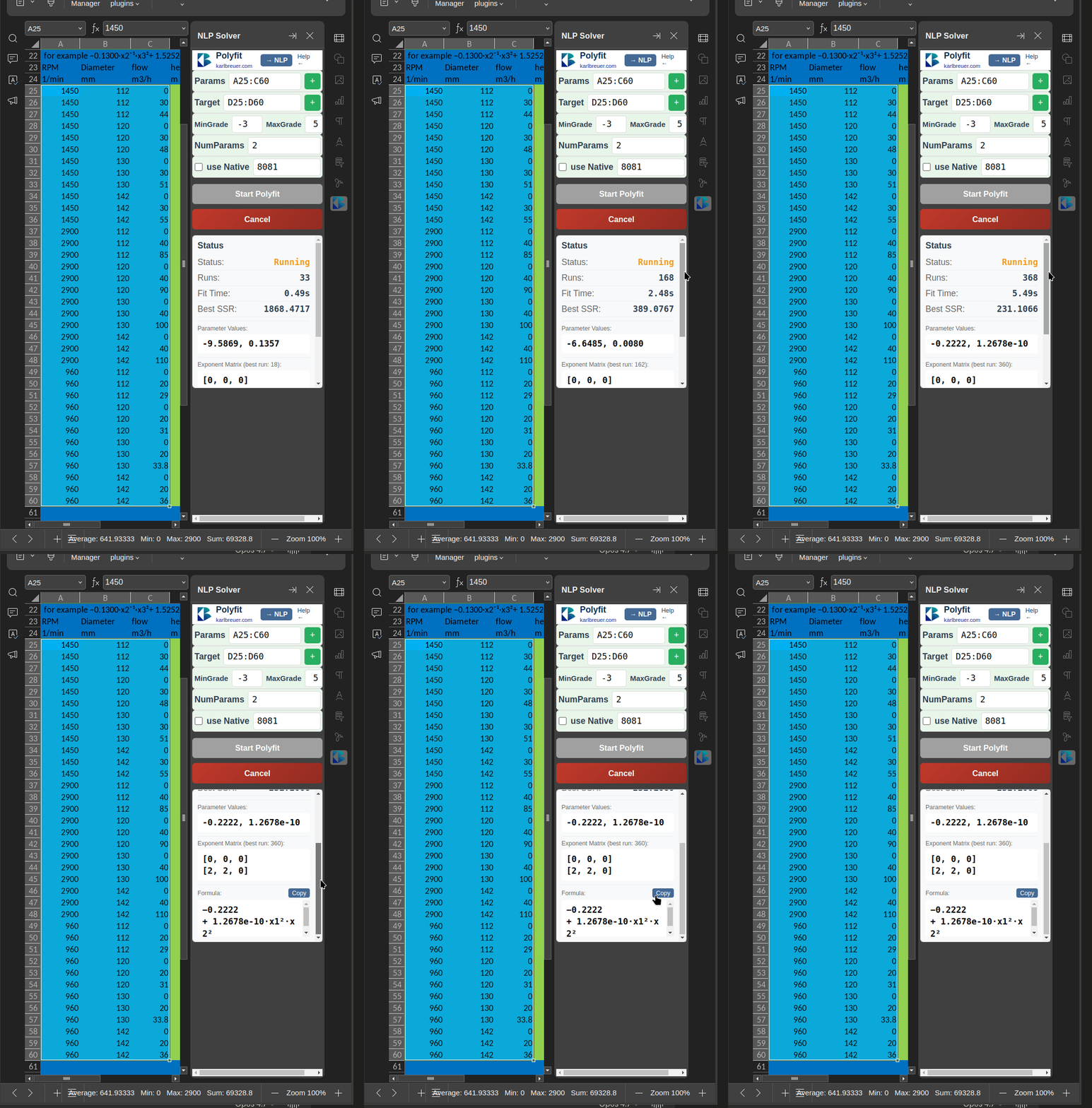
PolyFit demonstration

PolyFit

Automatic polynomial regression. You provide input columns and a target column; PolyFit systematically tries all polynomial combinations within the defined degree range and returns the formula with the best fit.

Installation

OnlyOffice 9.x and later

Since version 9, OnlyOffice no longer reliably loads plugins installed through its plugin manager. Until that is fixed in the editor, the plugin can simply be placed into the plugin directory directly β€” three commands and you're done:

  1. Locate the plugin folder on your system, e.g. /opt/onlyoffice/desktopeditors/editors/sdkjs-plugins
  2. Download the ZIP using the button above
  3. Unzip the archive
  4. Move the unpacked folder {88fb63f6-cd50-4e4c-bf2f-f2b0d902d05c} into the plugin folder:
    sudo mv '{88fb63f6-cd50-4e4c-bf2f-f2b0d902d05c}' \
      /opt/onlyoffice/desktopeditors/editors/sdkjs-plugins/

OnlyOffice up to 8.x

The legacy plugin loader still works through the plugin manager:

  1. Download the legacy plugin (.plugin) using the button above
  2. Open OnlyOffice Spreadsheet
  3. Plugins β†’ Plugin Manager β†’ Install from file
  4. Select the downloaded file
  5. The NLP Solver appears in the Plugins menu

Manual β€” NLP Solver

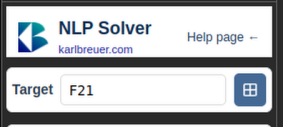
Step 1: Select the target cell

Selecting the target cell in the NLP Solver

Pick the cell containing the formula you want to minimize. This is your objective function β€” the value the solver will drive as low as possible.

Step 2: Define parameters

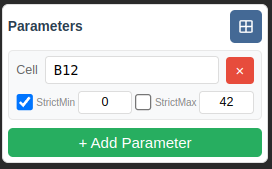
Configuring parameters with bounds

Select the parameter cells β€” the values the solver is allowed to adjust to find the optimum.

Note: The solver does not use the current values in your parameter cells. Whatever is in them when you press Start is ignored.

You can specify bounds for each parameter. The solver uses them to construct the initial simplex, which helps it find the correct minimum more reliably. Without explicit bounds the defaults are -1.0 to 1.0 β€” but these are not binding, the simplex may move beyond them.

StrictMin / StrictMax

When enabled, the parameter will never exceed the bound. For example, enable StrictMin and set it to 0 to allow only positive values.

Step 3: Add constraints (optional)

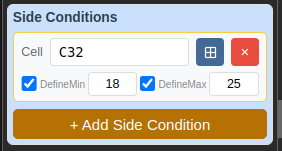
Defining constraints in the NLP Solver

Add constraints to restrict the solution space. Each constraint has min and max values with their own checkboxes.

DefineMin / DefineMax

When enabled, the corresponding bound is enforced. Leave it off if your constraint doesn't need a limit on that side β€” e.g. if you require a minimum but don't care about the maximum. Internally, undefined bounds are set to Β±MaxFloat64.

Both options are enabled by default for convenience.

Step 4: Set iterations and start

Iterations and start

Choose the number of iterations. More iterations may produce better results on complex, highly nonlinear problems β€” but also take longer. Click Start to run the optimization.

Manual β€” PolyFit

PolyFit automatically finds the polynomial formula that best describes your data. You provide input columns (Params) and a target column (Target); the algorithm systematically tries all polynomial combinations within the defined degree range and returns the formula with the best fit.

While the standard mode assumes the objective function f(x1, x2, x3, …) is already known and only its parameters need to be tuned, PolyFit treats the function itself as unknown. Both the structure of the polynomial and its coefficients are fitted.

This is particularly useful when evaluating measurement series for which no theoretical model is available. Once the formula is determined, you can use it without further computation β€” as an ordinary cell formula.

Step 1: Switch mode

In the plugin window, switch to PolyFit at the top.

Step 2: Mark cell ranges

Select the relevant cell ranges in the spreadsheet and assign them using the buttons:

  • Select as Params β€” the columns with the input values x1, x2, x3, …
  • Select as Target β€” the column with the target values y that the polynomial should approximate

Step 3: Define the search space

  • MinGrade and MaxGrade determine which exponents are allowed in the terms (negative values are permitted).
  • NumParams is the number of terms in the resulting polynomial β€” i.e. how many summands the final formula has.

Step 4: Use Native (optional, recommended)

With Use Native, PolyFit talks to a local HTTP service instead of running the WASM build in the browser. This is significantly faster, especially for large datasets or wide search spaces. See Native PolyFit Service below.

Result

The result is a ready-to-use formula you can paste directly into your spreadsheet β€” for example:

-0.1300Β·x2⁻¹·x3Β² + 1.5252Β·x1Β²Β·x3 + …

Native PolyFit Service

The PolyFit service is a small native program that performs the computation locally. It is significantly faster than the WASM variant and runs alongside the OnlyOffice editor.

  1. Download and unpack the PolyFit Service ZIP using the button above.
  2. Pick the folder for your platform (e.g. nlp-linux-amd64, nlp-windows-amd64, nlp-darwin-arm64).
  3. Run the binary nlp or nlp.exe. The default port is 8081:
    ./nlp           # default port 8081
    ./nlp 9000      # custom port
  4. Enable Use Native in the plugin and set the same port.

The terminal window must stay open while the service is running. Stop it with Ctrl+C or by closing the window. A detailed manual including the HTTP API is included in the ZIP as README.txt.

Help improve this plugin

I'm actively developing this plugin, and your feedback is invaluable. Here's how you can contribute:

  • Something unclear? Just ask.
  • Found a bug? Send me your spreadsheet so I can reproduce and fix the issue.
  • Have a tricky optimization problem? Share it with me β€” I'm always looking for edge cases to test against.
  • Compared it with Excel or LibreOffice? I'd love to hear your feedback.